

Yes, you can migrate from Xero to QuickBooks Online, and most U.S. small businesses have three practical routes to get there. The fastest and most reliable path for a typical file is Intuit's Dataswitcher wizard, which connects your Xero account directly to a blank QuickBooks Online (QBO) company file and transfers chart of accounts, customers, vendors, and up to two fiscal years of transactions. If Dataswitcher's limits block what you need, a manual export-and-import workflow using a tool like SaasAnt Transactions handles selective or custom transfers. For multi-entity structures, heavy inventory, payroll complexity, or tight audit requirements, hiring a migration professional is the lower-risk option.
Before you pick a path, do one thing first: reconcile every bank and credit card account in Xero to your planned conversion date and pull your key reports. That single step determines how clean your data arrives in QBO.
Your three options at a glance:
- Dataswitcher (Intuit's official wizard): Best for most small businesses. Free for up to two fiscal years, direct connector, minimal manual work.
- Manual export/import (CSV + SaasAnt or similar): Best when you need selective data, custom field mapping, or data types Dataswitcher doesn't support.
- Hire a migration pro (Amcfo): Best for complex files, multi-entity setups, payroll, multicurrency, or when your team doesn't have the bandwidth.
Pro Tip: Schedule your conversion date to coincide with a month-end or quarter-end. Reconciling to a clean period boundary cuts post-migration cleanup time significantly.
Key Takeaways
Migrating from Xero to QuickBooks Online succeeds or fails based on what you do before the transfer starts, not during it.
| Point | Details |
|---|---|
| Reconcile Xero first | Reconcile every bank and credit card account to the conversion date before initiating any transfer. |
| Use Dataswitcher for most files | The official Intuit wizard is free for two fiscal years and handles most small business files with minimal cleanup. |
| Know what won't transfer | Budgets, payroll, attachments, projects, and memorized transactions require manual setup in QBO after migration. |
| Verify with comparative reports | Compare Balance Sheet, Trial Balance, P&L, and A/R and A/P aging between Xero and QBO before resuming operations. |
| Amcfo for complex migrations | Multi-entity, payroll, multicurrency, or audit-sensitive files benefit from Amcfo's documented, project-based migration service. |
Authoritative resources for your migration
Save these links before you start. They are the primary references for every step covered in this guide.
- Convert from Xero to QuickBooks Online: Intuit's official U.S. conversion guide, including pre-migration requirements, the blank-file requirement, and post-conversion reconciliation steps.
- Transferring Xero data to QuickBooks Online: Dataswitcher's detailed documentation on what transfers, what doesn't, year limits, add-ons, and timeline expectations.
- Post-migration checklist for converting Xero data to QuickBooks Online: Intuit's verification checklist covering report comparisons and reconciliation sign-off steps.
- MMC Convert: Self-service Xero to QBO conversion guide: A detailed walkthrough of a self-service migration flow, including comparative quality reports and validation steps.
Keep your exported Xero reports, the Dataswitcher Quality Report, and your reconciliation sign-off document stored securely for a minimum of three years. These are your audit trail if any question arises about the period spanning your migration date. For ongoing financial records organization, a structured document retention policy applied from day one in QBO prevents the same cleanup problems from recurring.
This article is general information, not a substitute for advice from a qualified financial advisor. Consult a qualified financial professional about your own circumstances before acting on anything here.
Table of Contents
- How does a Xero to QuickBooks migration actually work?
- What you need to prepare before starting the migration
- What data transfers and what gets left behind
- How to use Intuit's Dataswitcher step by step
- When a manual import tool is the better choice
- How to verify your data and reconcile accounts after conversion
- Common migration problems and how to fix them
- When should you hire a migration expert?
- Sources
How does a Xero to QuickBooks migration actually work?
The mechanics differ by route, but the core idea is the same: your Xero data gets mapped to QBO's data structure, transferred, and then verified. Here's how each option plays out in practice.
Dataswitcher is Intuit's official conversion partner. It uses a direct API connector between Xero and QBO, so no CSV files change hands. You authorize both accounts, choose how many years to transfer, select any paid add-ons (extra years, inventory support), and Dataswitcher handles the field mapping automatically. Most transfers finish within a few hours, though complex files can take up to several days. The free tier covers two fiscal years; older history gets consolidated into opening balances unless you purchase additional years.
Manual export/import is the right call when Dataswitcher's automatic mapping doesn't fit your needs. You export reports and ledgers from Xero as CSVs, clean and reformat the data to match QBO's import templates, then use a tool like SaasAnt Transactions to push customers, vendors, chart of accounts, and transactions into QBO in controlled batches. It takes more time and carries more risk of mapping errors, but it gives you precise control over what moves and what doesn't.
Hiring a pro makes sense when the file is too complex for a self-service tool to handle cleanly. Multi-entity consolidations, payroll records, multicurrency books, and large inventories all introduce edge cases that automated tools handle inconsistently.
| Dimension | Dataswitcher (Official) | Manual Import (SaasAnt) | Hire a Pro (Amcfo) |
|---|---|---|---|
| What migrates | COA, customers, vendors, transactions (up to 2 years free), inventory basics | Whatever you export and map — full control | Full scope, including edge cases and cleanup |
| What doesn't migrate | Budgets, payroll, attachments, projects, memorized transactions | Depends on your CSV prep; links and credits often break | Handled or documented as exceptions |
| Estimated time | Minutes to 72 hours | Days to weeks depending on volume | 1–3 weeks depending on scope |
| Likely cost | Free (2 years); paid add-ons for extra years/inventory | Tool subscription + your time | Project-based fee |
| Post-transfer cleanup | Low to moderate | Moderate to high | Minimal — included in scope |
| Best use case | Typical small business, clean books, single entity | Selective migration, custom mapping needs | Complex files, multi-entity, payroll, audit requirements |
What you need to prepare before starting the migration
Skipping the pre-migration checklist is the most common reason a conversion produces a QBO file that doesn't reconcile. Per QuickBooks' official conversion guidance, you must reconcile all bank and credit card accounts in Xero up to the conversion date before you begin.
In Xero, complete these tasks:
- Reconcile every bank and credit card account to the conversion date. No unreconciled transactions should remain.
- Set a lock date in Xero at the conversion date so no one can post retroactively after migration starts.
- Export your Balance Sheet, Trial Balance, Profit & Loss, A/R Aging, and A/P Aging reports. These become your verification baseline.
- Download any attachments you need to keep. Dataswitcher does not transfer them.
- Resolve unlinked credits and unmatched journal entries. These are the most common source of post-migration discrepancies.
- Pause any third-party integrations that write data to Xero during the migration window.
In QuickBooks Online, do this before connecting:
- Create a blank QBO company file. If the file already contains transactions, Dataswitcher cannot migrate into it. You would need to delete all data within a 90-day window or create a new account entirely.
- Choose the right QBO plan. QuickBooks Online Plus or Advanced is required if you need inventory tracking, classes, or locations. Simple Start and Essentials don't support those features.
- Enable Sales Tax, Classes, Locations, and any other features you'll need before the transfer runs. Enabling them after can cause mapping gaps.
Operational steps:
- Notify your team that Xero is going into read-only mode during migration.
- Schedule the migration close to a period end, ideally month-end or quarter-end.
- Secure a full Xero backup and store your exported reports somewhere accessible for at least one full tax year.
Pro Tip: Record the ending balance for every bank and credit card account in Xero on the conversion date. You'll use these figures to bulk-reconcile in QBO after transfer, which collapses hours of manual matching into minutes.
What data transfers and what gets left behind
Understanding what Dataswitcher actually moves, and what it doesn't, saves you from a nasty surprise on day one in QBO. The Intuit documentation on transferring Xero data is specific about both lists.
What typically migrates:
- Chart of accounts (mapped to QBO account types)
- Customer and vendor lists with contact details
- Up to two fiscal years of transactions (invoices, bills, payments, journal entries) on the free tier
- Inventory items for QBO Plus/Advanced, with partial field mapping (SKU, name, description)
- Classes and locations, if enabled in QBO before transfer
- Opening balances for accounts where transaction history isn't transferred
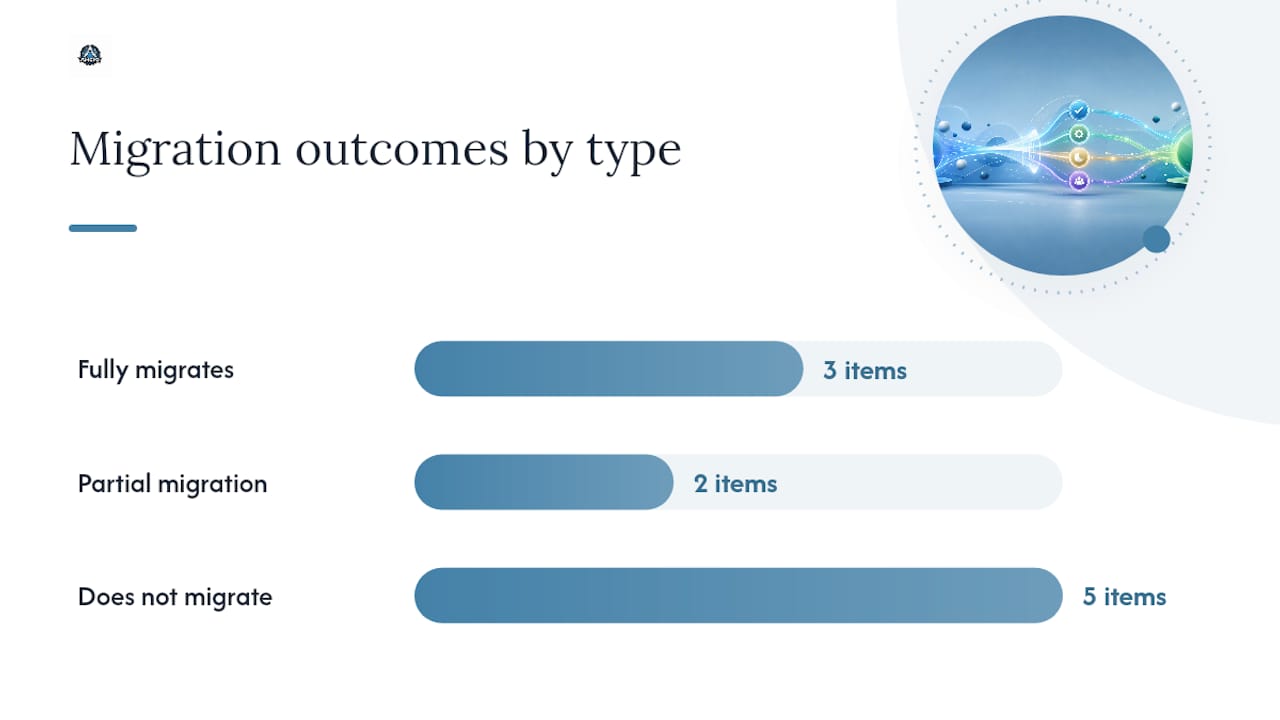
What does not migrate:
- Budgets
- Payroll records
- File attachments (receipts, contracts, supporting documents)
- Projects and project-related entries
- Memorized or recurring transactions
- Invoice and quote templates
- Multicurrency transaction histories in full (foreign-currency transactions are converted to home currency at the exchange rate recorded in Xero)
- Unlinked credits and credit notes that aren't applied to invoices
Key limitations to know:
Transactions older than two fiscal years are consolidated into a single opening balance entry unless you purchase additional years. Inventory support has item limits depending on your QBO plan, and income/asset account mapping for inventory may be incomplete. Multicurrency books require extra attention: QBO must have multicurrency enabled before transfer, and historical foreign-currency balances may not reconcile perfectly to Xero's figures due to exchange rate rounding.
Before migration, clean up these items in Xero: apply all open credits to invoices or bills, close out any project-related entries you want to preserve as journal entries, and confirm your tax period timing aligns with your conversion date.
| Data Type | Migrates? | Notes |
|---|---|---|
| Chart of accounts | Yes | Mapped to QBO account types |
| Customers and vendors | Yes | Contact details included |
| Transactions (up to 2 years) | Yes (free tier) | Older years consolidated to opening balances |
| Inventory items | Partial | Plus/Advanced only; income/asset mapping may be incomplete |
| Budgets | No | Must be recreated manually in QBO |
| Payroll records | No | Requires separate QBO Payroll setup |
| Attachments | No | Download from Xero before migration |
| Projects | No | Preserve as journal entries if needed |
| Memorized transactions | No | Recreate as recurring transactions in QBO |
| Multicurrency history | Partial | Converted to home currency; rounding differences likely |
How to use Intuit's Dataswitcher step by step
The Dataswitcher flow is straightforward once your Xero file is clean and your QBO account is blank. Follow these steps in order and don't skip the confirmation email.
- Reconcile and lock Xero. Complete every reconciliation task from the pre-migration checklist. Set your Xero lock date.
- Confirm your QBO file is blank. Log into QBO and verify there are no transactions, customers, or accounts already entered. If there are, you must delete all data or create a new QBO account.
- Confirm your QBO plan supports your needs. Inventory, classes, and locations require QBO Plus or Advanced.
- Navigate to the Dataswitcher tool. Access it through the QuickBooks conversion page or directly through Intuit's migration portal.
- Authorize both accounts. Grant Dataswitcher permission to read your Xero data and write to your QBO file. Intuit uses secure consent screens and documented data stewardship principles to handle your financial data during this connection.
- Choose your transfer years and add-ons. Select how many fiscal years to transfer. Two years are included free; additional years and inventory support are available as paid add-ons.
- Start the transfer. Click to initiate. Dataswitcher will display a progress status.
- Wait for the confirmation email. Do not log into or use your QBO account until you receive this email. Using QBO before the transfer completes commonly breaks field mappings and creates corrupted records that require significant manual cleanup.
- Download the Dataswitcher Quality and Comparative reports. These are generated automatically after transfer and are your first verification tool.
Timeline expectations: Most Dataswitcher transfers complete within a few hours, but complex files with large transaction volumes can take 24–72 hours. If your transfer exceeds 72 hours without a confirmation email, contact Intuit support before touching the QBO file.
When a manual import tool is the better choice
Dataswitcher covers the majority of Xero to QuickBooks conversions cleanly, but it has real limits. A manual export-and-import workflow using a tool like SaasAnt Transactions is worth considering when those limits matter to your file.
Situations where manual import fits better:
- You need more than two years of transaction history but don't want to pay for Dataswitcher add-ons.
- You're migrating only a subset of data, such as open invoices and current-year transactions, not the full historical file.
- Your Xero file has custom account structures or tax codes that Dataswitcher maps incorrectly.
- You need to validate and correct data before it enters QBO, rather than cleaning it up afterward.
The high-level workflow:
- Export your chart of accounts, customer list, vendor list, and transaction reports from Xero as CSVs.
- Clean the exported files: remove Xero-specific fields that QBO doesn't recognize, standardize date formats, and resolve any duplicate names.
- Map your Xero account codes to QBO account types. Tax codes, classes, and locations need explicit mapping before import.
- Use SaasAnt Transactions (or a comparable import utility) to import in this order: chart of accounts first, then customers and vendors, then items, then transactions.
- Import in small batches and validate each batch before proceeding to the next.
Key mapping considerations:
- Account codes: Xero uses numeric codes; QBO uses account names and types. Map each Xero code to the correct QBO account type before import.
- Tax codes: U.S. sales tax in QBO works differently from Xero's tax structure. Set up your sales tax rates in QBO before importing transactions.
- Inventory SKUs: SaasAnt can match on SKU, but your Xero export must include the SKU field consistently. Items without SKUs will create duplicates.
- Multicurrency rows: each foreign-currency transaction needs a home-currency equivalent. Rows without this field will fail on import.
MMC Convert's self-service documentation shows how a comparable self-service flow works end to end, including the comparative quality reports generated after transfer, which is a useful reference for understanding what a clean import validation looks like.
Risks to manage:
Manual imports break transaction links. A payment applied to an invoice in Xero arrives in QBO as two separate unlinked transactions unless your import tool explicitly handles that relationship. Credits, refunds, and journal entries are the most common casualties. Run a test import with a small batch of 20–30 transactions first, verify the results against your Xero export, and only then scale up.
| Import Step | Tool / Method | Key Risk |
|---|---|---|
| Export from Xero | Xero reports and CSV export | Incomplete fields, Xero-specific formatting |
| Clean and map fields | Spreadsheet (Excel or Google Sheets) | Incorrect account type mapping |
| Import COA, customers, vendors | SaasAnt Transactions | Duplicate records if names don't match exactly |
| Import transactions | SaasAnt Transactions (batched) | Broken links between invoices and payments |
| Validate and reconcile | QBO reports vs. Xero exports | Unmatched credits, missing tax codes |
How to verify your data and reconcile accounts after conversion
Post-migration verification is where most businesses either confirm a clean transfer or discover problems they need to fix before resuming normal operations. Intuit's post-migration checklist recommends comparing Balance Sheet, Profit & Loss, and A/R and A/P aging summaries between Xero and QBO for the current fiscal period.
Run these reports in both systems and compare them side by side:
- Balance Sheet as of the conversion date
- Trial Balance as of the conversion date
- Profit & Loss for each transferred fiscal year
- A/R Aging Summary
- A/P Aging Summary
- Sales tax liability report for the conversion period
Step-by-step reconciliation in QBO:
- Open QBO's Reconcile tool for each bank and credit card account.
- Enter the ending balance from your Xero export as the statement ending balance.
- Enter the conversion date as the statement end date.
- Bulk-select all transactions up to the conversion date and mark them as reconciled.
- Confirm the difference shows $0.00. If it doesn't, the discrepancy needs to be traced before you proceed.
- Repeat for every account.
When totals don't match:
Common causes include currency conversion rounding on multicurrency accounts, older transactions consolidated into a single opening balance entry, and unlinked credits or journal entries that didn't transfer with their original relationships intact. To trace a discrepancy, run the Trial Balance in both systems for the same date and work account by account until you find the gap. Journal entries in QBO's audit log can help identify what Dataswitcher created versus what was in Xero.
Before reconnecting bank feeds and resuming operations, confirm:
- Every bank and credit card account reconciles to $0.00 difference.
- A/R and A/P aging totals match between Xero and QBO.
- Sales tax balances match for the conversion period.
- Open invoices and bills in QBO match the Xero A/R and A/P aging reports.
- All customer and vendor records are present and correctly named.
Common migration problems and how to fix them
Even a well-prepared migration produces a few issues. Knowing what to look for cuts diagnostic time from days to hours.
Missing or consolidated historical transactions. If transactions older than two fiscal years appear as a single opening balance in QBO, that's expected Dataswitcher behavior, not an error. If transactions within the two-year window are missing, check the Dataswitcher Quality Report for skipped records and contact Intuit support with the specific transaction IDs.

Unmatched credits and journal entries. Credits that weren't applied to invoices in Xero before migration arrive in QBO as standalone credit memos with no link to the original invoice. Fix these by manually applying the credit memo to the correct invoice in QBO. Rematching credits to their invoices in Xero before migration, as noted in Intuit's guidance, is the cleaner solution.
Inventory not mapping correctly. Inventory items that exceed your QBO plan's limits, or items missing SKUs, will either fail to import or land in QBO as non-inventory items. Audit your inventory list in Xero before migration, confirm your QBO plan supports the item count, and re-import problem items manually using SaasAnt if needed.
Multicurrency imbalances. Foreign-currency account balances in QBO may differ from Xero due to exchange rate rounding. These differences are typically small and can be corrected with a journal entry to an exchange rate gain/loss account. Document the adjustment for audit purposes.
Duplicate customer or vendor records. Dataswitcher creates a new record if a name doesn't match exactly. "ABC Corp" and "ABC Corp." become two separate vendors. Merge duplicates in QBO using the Merge Vendors or Merge Customers function after migration.
When to escalate: If your Trial Balance doesn't reconcile after two rounds of investigation, or if the Dataswitcher Quality Report shows a significant number of skipped records, stop and contact Intuit support or bring in a migration professional. Continuing to post transactions on top of an unreconciled file makes the problem exponentially harder to fix.
When should you hire a migration expert?
Some Xero to QuickBooks conversions are genuinely too complex for a self-service tool to handle cleanly, and recognizing that early saves weeks of cleanup work.
Hire a professional when your situation includes any of these:
- Multiple legal entities or consolidated financial statements that need to be separated or restructured in QBO.
- Payroll that was processed through Xero and needs to be mapped to a new payroll provider with accurate year-to-date figures.
- More than 1,000 inventory items, or inventory with complex costing methods (FIFO, average cost) that require careful mapping.
- Heavy multicurrency use with multiple foreign-currency bank accounts and intercompany transactions.
- A pending audit, tax filing, or lender review that requires the migration to be documented and signed off.
- Internal accounting resources that are already at capacity and can't absorb the migration workload.
If you recognize your business in that list, reading 7 signs your business needs a bookkeeper may help you frame the decision.
What a professional migration scope looks like with Amcfo:
- Pre-migration cleanup in Xero: reconciliation, lock date, credit resolution, and report extraction.
- QBO configuration: plan selection, feature setup, chart of accounts mapping, and tax settings.
- Dataswitcher coordination or manual import execution, depending on file complexity.
- Post-migration reconciliation and comparative report sign-off.
- Team training on QBO workflows and ongoing bookkeeping handoff if needed.
On cost and timeline: Amcfo structures migration engagements on a project basis, with scope and pricing determined by file complexity. Expect a one-to-three-week timeline for most small-to-medium business files. Deliverables should include comparative reports, a reconciliation sign-off document, and audit-ready documentation of the conversion.
Questions to ask any migration provider before you hire:
- Can you show me a sample comparative report from a previous migration?
- How do you handle data that Dataswitcher can't transfer?
- What security practices govern how you access my Xero and QBO accounts?
- What documentation do I receive at the end of the engagement?
- How long do you retain my data after the project closes?
Pro Tip: Ask for a fixed-scope project proposal, not an open-ended hourly engagement. A professional who has done this before can scope a migration accurately. Hourly billing on a migration is a signal that the provider is learning on your file.
What Amcfo's migration experience shows about doing this right
The businesses that come through a Xero to QuickBooks migration cleanly share a few habits that have nothing to do with which tool they used. They scheduled the conversion at a period end, not mid-month. They kept their Xero exports and the Dataswitcher Quality Report in a shared folder that their accountant could access. And they ran the post-migration reconciliation before they reconnected bank feeds, not after.
The ones that struggled did the opposite: they started the migration on a random Tuesday, didn't pull their Xero reports first, and opened QBO the moment the progress bar finished. Fixing that takes longer than doing it right the first time.
For cash-basis businesses, timing the migration around your tax filing calendar matters more than most guides acknowledge. If your conversion date falls mid-quarter, you'll need to file a partial-period return in Xero and a partial-period return in QBO, which creates reconciliation complexity at tax time. Coordinate with your tax preparer before you pick a conversion date.
Amcfo's QuickBooks setup guidance covers the configuration steps that often get skipped after a migration, including fiscal year settings, sales tax setup, and bank feed reconnection.
Amcfo handles your QuickBooks migration from start to finish
Migrating from Xero to QuickBooks is a one-time project where the cost of getting it wrong shows up in every reconciliation for the next two years. Amcfo's accounting and bookkeeping service covers the full migration scope: pre-migration cleanup in Xero, Dataswitcher coordination or manual import for files that need it, post-migration reconciliation, and QBO configuration tailored to your business's tax and reporting structure.

What separates Amcfo from a generic bookkeeping service is U.S. tax and journal experience applied directly to the migration. Every engagement ends with a documented reconciliation sign-off and comparative reports you can hand to an auditor or lender. Project-based pricing means you know the cost before work starts, with no open-ended hourly surprises. If you want ongoing bookkeeping after the migration, that transitions into a monthly retainer.
Schedule a consultation at Amcfo to get a scoped proposal for your migration.
Sources
- Convert from Xero to QuickBooks Online
- Transferring Xero data to QuickBooks Online
- Post-migration checklist for converting Xero data to QuickBooks Online
- A Detailed Guide to the Self Service Tool for Xero to QBO Conversion for Australian Businesses | MMC Convert