

Undeposited Funds in QuickBooks Online is a temporary holding account that collects customer payments until you record a formal bank deposit. Think of it as a lockbox on your desk: money sits there until you physically take it to the bank. If your Undeposited Funds balance keeps growing, here is what to do right now:
- Verify the account exists in your Chart of Accounts with the correct Detail type (Other Current Assets → Undeposited Funds).
- Run the Undeposited Funds report to see every payment sitting in the account (default 90-day window).
- Clear items by recording a Bank Deposit that groups those payments into a single deposit matching your bank statement.
QuickBooks Payments and connected bank feeds can handle this automatically in many cases, but manual workflows still require you to manage it yourself. Intuit Support and the QuickBooks Community are both solid resources when you hit a wall.
Key Takeaways
The Undeposited Funds account in QuickBooks Online is a temporary staging account, and a balance that never clears is always a sign of an incomplete workflow, not a normal accounting state.
| Point | Details |
|---|---|
| Undeposited Funds is a transit account | It holds payments temporarily; a persistent balance signals an incomplete deposit workflow. |
| Two-step workflow is required | Record payment to Undeposited Funds first, then create a Bank Deposit to clear it. |
| Run the report weekly | The 90-day default report catches in-flight payments before they become reconciliation problems. |
| Historical balances need a journal entry | Use a dated JE into a clearing account to isolate prior-period balances without distorting current reports. |
| Amcfo handles cleanup and ongoing reconciliation | Amcfo's bookkeeping and QuickBooks cleanup services resolve multi-period discrepancies and standardize your deposit workflow. |
Table of Contents
- What the undeposited funds account in QuickBooks actually does
- When to use Undeposited Funds and when to skip it
- Step-by-step QuickBooks Online workflow for recording deposits
- How to run an Undeposited Funds report and spot problems early
- Reconcile and clean up old Undeposited Funds balances
- Common Undeposited Funds mistakes and how to fix them
- When to hire a QuickBooks pro versus handling it yourself
- A practitioner's note on preventing Undeposited Funds noise
- Amcfo can handle your QuickBooks cleanup and ongoing bookkeeping
- Official QuickBooks resources to read next
- Sources
What the undeposited funds account in QuickBooks actually does
Undeposited Funds is a pre-built asset account QuickBooks Online creates automatically. Its sole job is to stage payments before they hit your bank account. The reason the account exists comes down to one practical reality: your bank often receives a single lump-sum deposit covering several checks or payments, not individual transactions. Without a staging account, QuickBooks would show five separate $200 income entries while your bank statement shows one $1,000 deposit. Reconciliation would be a mess.
The two-step workflow solves that. Step one: receive a payment and assign it to Undeposited Funds. Step two: record a Bank Deposit that bundles those staged payments into one transaction matching the bank. The account balance drops to zero once the deposit is recorded correctly.
A common misconception flagged in the QuickBooks Community is treating Undeposited Funds like a bank account or petty cash. It is neither. It is a transit account, and a balance sitting there for weeks is a signal something is incomplete.
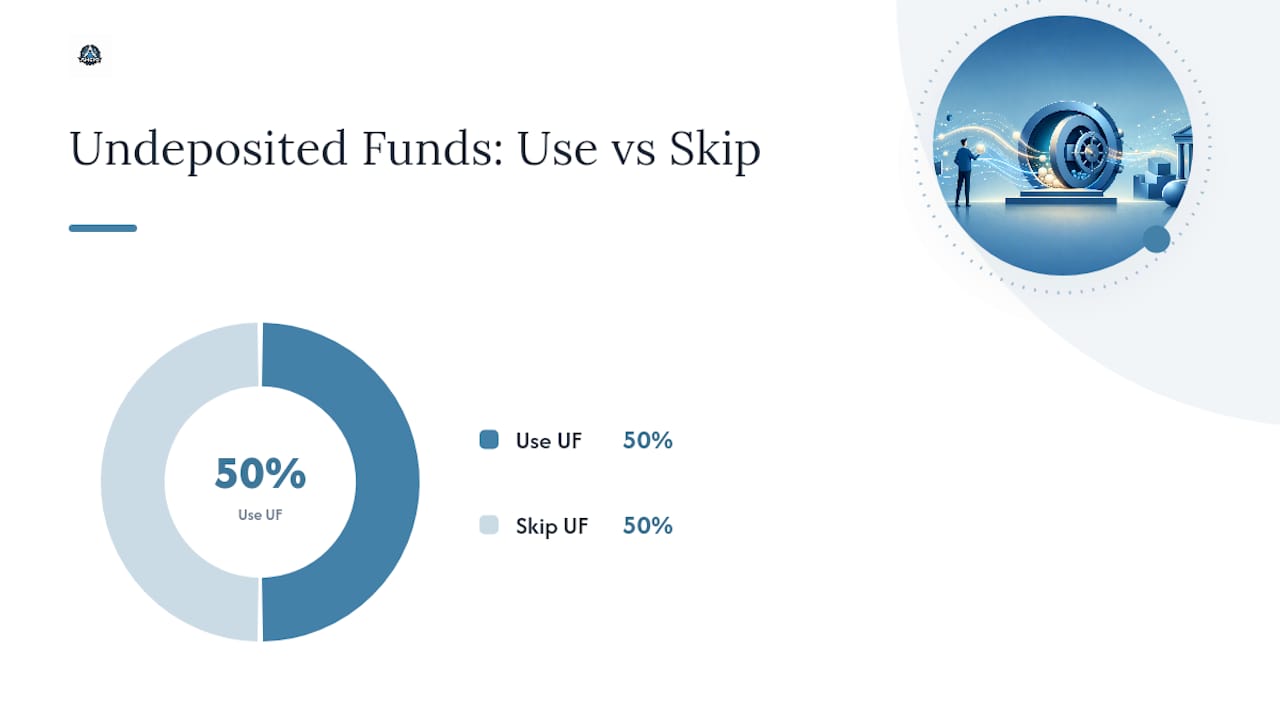
When to use Undeposited Funds and when to skip it
Not every payment needs to pass through Undeposited Funds. QuickBooks Online identifies specific conditions where the account is necessary versus situations where you can post directly to the bank.
| Scenario | Use Undeposited Funds? | Why |
|---|---|---|
| Multiple checks deposited as one lump sum | Yes | Matches the bank's single deposit entry |
| Bank account not connected to QuickBooks | Yes | No automatic feed to post the deposit |
| Payments not processed by QuickBooks Payments | Yes | Manual workflow requires staging |
| Single payment deposited individually | No | Post directly to the bank account |
| Bank feeds enabled and auto-matching | No | Feed handles the deposit automatically |
| QuickBooks Payments processing the transaction | No | Auto-deposits without manual staging |
If you are unsure which account your team is using, open the Chart of Accounts and check the Detail type column. The correct account will show "Undeposited Funds" as its Detail type under Other Current Assets. The account can be renamed by a prior bookkeeper, so the name alone is not reliable confirmation.
Step-by-step QuickBooks Online workflow for recording deposits
The full workflow has two phases. Get both right and your bank reconciliation will match cleanly.
Phase 1: Receive the payment into Undeposited Funds
- Go to + New and select Receive Payment (for an existing invoice) or Sales Receipt (for a point-of-sale transaction).
- Fill in the customer name, payment date, payment method, and amount.
- In the Deposit To dropdown, select Undeposited Funds.
- Save the transaction. The payment now sits in the staging account.
Phase 2: Record the bank deposit
- Go to + New and select Bank Deposit.
- In the Account field at the top, choose the actual bank account where the money landed.
- Under Select the payments included in this deposit, check every payment that was part of the same physical deposit at the bank.
- Confirm the total matches your bank deposit slip.
- Save. QuickBooks moves those payments out of Undeposited Funds and into the bank account as one transaction.
Pro Tip: Before training any staff on this workflow, open the Chart of Accounts and confirm the "Deposit To" dropdown actually points to the correct Undeposited Funds account. The account can be renamed, and the Detail type is the only reliable identifier. One wrong setting sends every payment to the wrong place.
If your business uses QuickBooks Payments, the platform often handles the deposit automatically, bypassing the manual staging step entirely. In that case, you may not need Undeposited Funds at all for those transactions.
How to run an Undeposited Funds report and spot problems early
The report is your first line of defense before month-end reconciliation. Here is how to pull it in QuickBooks Online:
- Go to Reports in the left navigation.
- Search for "Undeposited Funds" in the search bar.
- Open the report. It defaults to a 90-day window, showing all payments received but not yet deposited.
- To see older items, change the date range in the report header to a custom period.
The 90-day default is a practical starting point, but if you suspect historical balances, extend the range back to the beginning of your fiscal year or further. Any payment older than a few days that has not cleared is worth investigating before it becomes a reconciliation problem.
Use this report weekly, not just at month-end. Payments "in flight" are much easier to trace when the transaction is recent. A 30-day-old unmatched payment requires hunting down a bank statement; a 3-day-old one usually takes 30 seconds to identify.
Reconcile and clean up old Undeposited Funds balances
Old balances in Undeposited Funds are one of the most common cleanup jobs bookkeepers face. The workflow below works whether you are cleaning up a few stray items or months of accumulated entries.
Cleanup workflow:
- Run the Undeposited Funds report for the full history of the company file.
- Cross-reference each item against your bank statements to determine whether the payment was actually deposited.
- For items that were deposited but never matched in QuickBooks, create a Bank Deposit entry grouping those payments and dated to match the actual deposit date.
- For items that were never deposited (voided checks, duplicate entries, data-entry errors), void or delete the original transaction after confirming with your bank records.
Handling historical balances with a journal entry:
When you have prior-period balances that predate your reconciliation start date, the accepted approach is a journal entry into a clearing account. The entry moves the old balance out of Undeposited Funds and into a temporary clearing account, dated just before your reconciliation start date. Once reconciled, the clearing account balance should net to zero. This preserves the audit trail without distorting current-period reports.
A generic journal entry template looks like this:
Pro Tip: Document every cleanup action with a note in the transaction memo field and keep copies of the bank statements you used to verify each match. If an auditor or your CPA asks why a balance was moved, you want a clear paper trail. The Chart of Accounts detail type should also be confirmed before and after cleanup to make sure no account settings changed.
Under cash-basis accounting, Undeposited Funds balances represent payments you have constructive receipt of, which means they may legitimately sit on the balance sheet until deposited. That is normal at month-end. What is not normal is a balance that never moves.
Common Undeposited Funds mistakes and how to fix them
Most problems with the undeposited funds account in QuickBooks trace back to a handful of repeatable errors.
- Duplicate deposits: A payment was recorded in Undeposited Funds AND posted directly to the bank account. Fix: locate the duplicate bank entry, confirm which transaction matches the bank statement, and delete or void the other.
- Payments posted directly to the bank instead of Undeposited Funds: This skips the staging step and creates a mismatch when the bank receives a lump-sum deposit. Fix: edit the original payment transaction and change the "Deposit To" field to Undeposited Funds, then record the correct Bank Deposit.
- Renamed Undeposited Funds account: A prior bookkeeper renamed the account, so new staff post to the wrong place. Fix: go to Chart of Accounts, find the account with Detail type "Undeposited Funds," and rename it back to the standard name to avoid confusion.
- Mixed bank-feed and manual workflows: Bank feeds auto-post deposits while staff also record manual Bank Deposit entries, creating doubles. Fix: define one consistent deposit workflow per company and disable the conflicting process.
When to pause and call a professional: A large unexplained balance, discrepancies spanning multiple fiscal periods, or any situation where you cannot match transactions to bank statements without guessing are all red flags. Trying to force a reconciliation in those cases can compound the problem. See the common small business accounting challenges that often accompany these issues.
When to hire a QuickBooks pro versus handling it yourself
Some Undeposited Funds problems are a 20-minute fix. Others are a multi-month cleanup that touches tax returns. Use this checklist to decide:
DIY is reasonable when:
- The balance is recent (under 90 days) and you can match every item to a bank statement.
- Your workflow is consistent and the issue is a one-time data-entry error.
- You have time to work through the report systematically without rushing.
Bring in a professional when:
- Balances span multiple fiscal years or overlap with filed tax returns.
- You cannot reconcile the account without creating new discrepancies.
- Staff turnover means no one knows how the original entries were made.
- The balance is large enough that a correction could affect your financial statements materially.
A cleanup engagement with Amcfo typically covers reconciliation of the Undeposited Funds account, journal entry templates for historical balances, Chart of Accounts validation, and a documented deposit workflow your team can follow going forward. The outcome is cleaner month-end reconciliations, a consistent deposit process, and less friction at year-end when your CPA needs clean books. For businesses that need ongoing support, Amcfo's bookkeeping and accounting services include regular reconciliation reviews so these balances never accumulate unnoticed.
A practitioner's note on preventing Undeposited Funds noise
The most common root cause of a bloated Undeposited Funds balance is not a software glitch. It is a workflow that was never fully defined. One person on the team records payments one way; another does it differently. Bank feeds run in the background while someone else records manual deposits. Within a few months, the account is full of entries no one can explain.
The fix is simpler than most people expect: pick one deposit workflow, document it in a one-page procedure, and check the Undeposited Funds report every week. That single habit catches problems when they are still easy to fix, before they become a reconciliation project.
Amcfo can handle your QuickBooks cleanup and ongoing bookkeeping
Undeposited Funds problems are fixable, but they take time and precision to resolve correctly, especially when balances span multiple periods or overlap with tax filings.

Amcfo provides QuickBooks cleanup, ongoing bookkeeping, and fractional CFO services for businesses across the United States. For Undeposited Funds specifically, the team handles reconciliation of the account, journal entries for historical balances, Chart of Accounts validation, and a documented deposit workflow your staff can follow consistently. Ongoing bookkeeping retainers include monthly reconciliation reviews so the account never quietly accumulates again. For businesses that want a full picture of available packages, the service and accounting packages page outlines every option. Contact Amcfo to schedule a cleanup consultation and get your QuickBooks file back on solid ground.
Official QuickBooks resources to read next
These Intuit sources back the guidance in this article and are worth bookmarking for your team:
- Managing your Undeposited Funds account — Intuit's official overview of what the account does and when bank downloads or QuickBooks Payments remove the need for it.
- Deposit payments into Undeposited Funds in QuickBooks Online — Step-by-step instructions for the receive-payment and bank-deposit workflow, including the specific conditions that require Undeposited Funds.
- Run an Undeposited Funds report — How to generate the report, change the date range from the 90-day default, and interpret outstanding items.
- Bank Deposits and Undeposited Funds — QuickBooks Community — Community thread clarifying the difference between Undeposited Funds and actual bank accounts, with real-world troubleshooting from bookkeepers.
- Understanding Detail types in QuickBooks Online — Intuit's Chart of Accounts guidance confirming the correct Detail type for Undeposited Funds versus petty cash accounts.
This article is general information, not a substitute for advice from a qualified financial advisor. Consult a qualified financial professional about your own circumstances before acting on anything here.
Sources
- Managing your Undeposited Funds account - QuickBooks - Intuit
- Deposit payments into the Undeposited Funds account in QuickBooks Online - Intuit
- Run an undeposited fund report - QuickBooks - Intuit
- Bank Deposits and Undeposited Funds | QuickBooks Community
- Choosing the right account types in QuickBooks - Intuit