

The QuickBooks chart of accounts is the categorized list of every account QuickBooks uses to sort your money: bank balances, credit cards, income, and expenses, all tagged by Account Type and Detail Type so your Profit & Loss and Balance Sheet actually add up. To see it right now, open QuickBooks Online, go to All apps (or the left menu) > Accounting > Chart of accounts. From there you can add, rename, or fix any account in minutes.
TL;DR:
- Properly matching account types and detail types prevents misreporting and reduces the need for reclassification during tax preparation.
- Using subaccounts sparingly and only for genuine roll-ups helps maintain a clear, navigable chart of accounts that won't turn into a maze.
- Setting the correct opening balance date prevents double-counting of transactions and avoids reconciliation errors over time.
- Enabling account numbers with GAAP-style ranges improves organization and clarity, especially when scaling or handovers occur.
- Regular review and maintenance, including merging duplicate accounts and documenting changes, keep the chart of accounts streamlined and accurate.
Table of Contents
- What the QuickBooks Chart of Accounts Does for Your Reports and Taxes
- How Account Categories, Detail Types, and Subaccounts Work Together
- How Do You Add a New Account in QuickBooks Online?
- Should You Turn On Account Numbers, and What Ranges Work Best?
- What Can and Can't Be Changed on Default QuickBooks Accounts?
- Why Opening Balances Cause Double-Counting (and How to Avoid It)
- Practical Habits That Keep a QuickBooks Chart of Accounts Clean
- When QuickBooks Cleanup Turns Into a Job for a Professional
- A Practitioner's Take on the Mistakes That Keep Coming Up
- Get Your QuickBooks Chart of Accounts Built Right the First Time
- Sources
- FAQ
What the QuickBooks Chart of Accounts Does for Your Reports and Taxes
The chart of accounts (COA) is the master list of every account in your general ledger, and it's the foundation everything else in QuickBooks rests on. It's not decoration. Every dollar that moves through your business gets sorted into one of these categories, and that sorting is what turns raw transactions into a Profit & Loss statement or Balance Sheet you can actually read.
QuickBooks builds those reports by reading two fields on each account: Account type and Detail type. Get those wrong, and your reports get wrong with them, quietly, for months.
A properly mapped COA pays off in three concrete ways, especially if you follow an effective expense tracking system for freelancers:
- Your P&L reflects real profitability instead of a jumbled mess of "Miscellaneous Expense" entries
- Tax prep goes faster because your accountant isn't reclassifying transactions before they can even start
- Reconciliation surprises drop because bank and credit card accounts post to the right place the first time
How Account Categories, Detail Types, and Subaccounts Work Together
QuickBooks organizes every account under five umbrella types: Assets, Liabilities, Equity, Income, and Expenses. Within each, a Detail Type narrows things further. "Checking" and "Savings" both live under Assets, but they're distinct detail types, and that distinction is what lets QuickBooks separate them correctly on your Balance Sheet.
Assets and Liabilities (along with Equity) show up on the Balance Sheet. Income and Expenses show up on the Profit & Loss. That split matters when you're deciding where a new account belongs, because putting a Liability-type account where an Expense should go will throw off both statements at once.
Subaccounts exist for one job: rolling up detail under a parent for cleaner reporting. Use them when you genuinely want a summary view, say, a "Utilities" parent with "Electric" and "Gas" subaccounts beneath it. Skip them when a standalone account would be just as clear, because over-nesting is one of the fastest ways to turn a clean COA into a maze.
- Assets: bank accounts, receivables, equipment, inventory
- Liabilities: credit cards, loans, payroll liabilities
- Equity: owner investment, retained earnings, draws
- Income: sales, service revenue, other income
- Expenses: rent, payroll costs, software, supplies
Pro Tip: If you're not sure whether something needs its own account or a subaccount, ask whether you'd ever want to see that number alone on a report. If yes, give it its own line.
How Do You Add a New Account in QuickBooks Online?
Adding an account takes about a minute once you know the sequence, and the same five fields matter every time.
- Go to All apps > Accounting > Chart of accounts, then click New.
- Choose the Account type (Bank, Credit Card, Expense, Income, and so on).
- Choose the matching Detail type, which narrows the category and tells QuickBooks how to treat it on reports.
- Enter the Name (and account Number, if you've enabled numbering).
- If it belongs under a parent account, check Is sub-account and select the parent.
- For Balance Sheet accounts, enter an Opening balance and the correct As of date.
- Click Save and Close.
That opening balance step is where most errors start, and the fix is simple: get the "As of" date right before you save, not after.
For businesses adding a handful of new accounts, manual entry through that same screen is fine. For a full rebuild, or when you're migrating a legacy system with dozens of accounts, importing from a spreadsheet or a QuickBooks Online Accountant template saves hours. Just know upfront: imports bring in the account structure, not the opening balances. Those still need to be entered by hand afterward.
QuickBooks Online's account list also supports batch editing, so once your accounts are imported, you can adjust multiple detail types or names at once rather than clicking into each one individually.
Should You Turn On Account Numbers, and What Ranges Work Best?
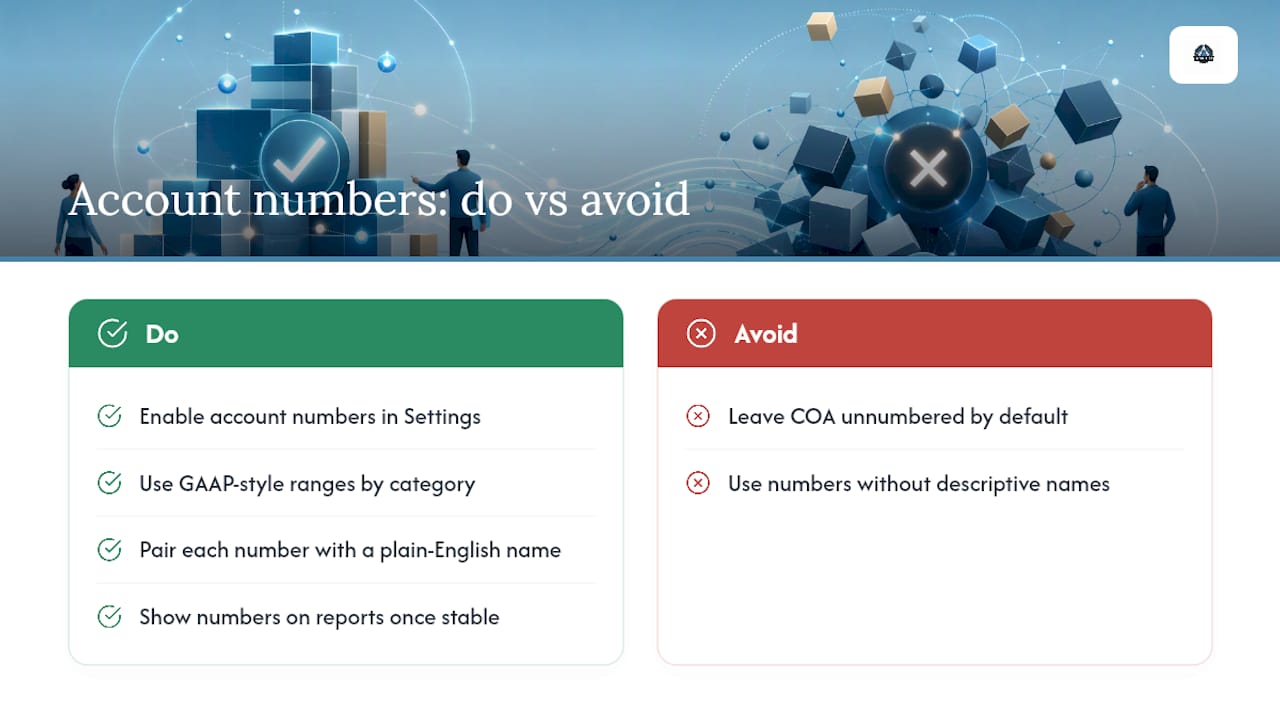
Account numbers are off by default in QuickBooks Online, which surprises a lot of new users who assume every accounting system numbers its accounts automatically. Turning the feature on takes seconds: go to the gear icon, Account and settings > Advanced > Chart of accounts, and toggle Enable account numbers on.
Once enabled, numbering turns a scrolling alphabetical list into something you can navigate at a glance, and it makes handing your books to a new bookkeeper or accountant far smoother because the structure is self-explanatory.
Most accountants recommend following a GAAP-style convention for account numbers, assigning ranges to categories such as Assets, Liabilities, Equity, Income, Cost of Goods Sold, and Expenses, with typical ranges for each category.
Pair each number with a short, plain-English name (10100 Checking, 60200 Software Subscriptions) rather than a number alone. You can also choose whether numbers display on reports, a setting worth turning on once your COA is stable.
What Can and Can't Be Changed on Default QuickBooks Accounts?
QuickBooks auto-creates a set of default accounts based on the business entity you select during setup, and a few of them come with rules you can't bend. Some, like the Services income account, can't be deleted or deactivated, even though you can rename them freely to fit your own terminology.
Others can only be removed by merging them into an account you want to keep. Merging is permanent: once two accounts merge, every transaction that touched either one now lives under the surviving account, and there's no simple undo.
- Rename default accounts to match your naming convention. That's always allowed.
- Merge duplicate or unused accounts rather than trying to delete them outright.
- Lock parent accounts to stop transactions from posting directly to a rollup account by mistake, and batch-lock several at once if you're cleaning up a larger list.
- If you hit your plan's account limit, know that QuickBooks Online Advanced removes the cap entirely and adds seats for growing teams.
Pro Tip: Before merging two accounts, run a Profit & Loss report filtered to each one separately. If the numbers surprise you, you're about to merge something you didn't fully understand.
Why Opening Balances Cause Double-Counting (and How to Avoid It)
Every Balance Sheet account you add in QuickBooks requires an As of date for its opening balance, and that date is doing more work than most people realize. It tells QuickBooks where the account's history starts.
The trouble comes when someone later adds transactions dated before that As of date without adjusting the opening balance to match. QuickBooks now counts that money twice: once in the opening balance, once in the newly added transaction. This is one of the most common reconciliation errors small business owners run into, and it's rarely obvious until a bank reconciliation refuses to balance weeks later.
- Set the As of date to match your actual QuickBooks start date, not an arbitrary earlier point.
- Remember that imported accounts never carry opening balances with them. Add them manually right after the import.
- If you need older transactions added retroactively, loop in an accountant to adjust the opening balance correctly rather than backdating entries yourself.
Practical Habits That Keep a QuickBooks Chart of Accounts Clean
A COA doesn't stay organized on its own. It stays organized because someone maintains it on a schedule, and the businesses that do this well tend to follow the same handful of habits.
- Name accounts consistently. Pair a number prefix with a short, specific descriptor, like 60300 Office Supplies instead of just "Supplies."
- Use subaccounts sparingly. They're for genuine rollups, not for every possible subdivision of an expense category. Three levels deep is usually one level too many.
- Review the COA quarterly. Make unused accounts inactive rather than deleting them, since inactive accounts preserve historical reporting while getting out of your way day to day.
- Keep a simple change log. A running note of what got renamed, merged, or made inactive, and why, saves enormous time when a new bookkeeper takes over.
- Know when to call in help. If your equity section has grown tangled with multiple partner draws, or you're restructuring after adding a new entity, that's a structural problem, not a five-minute fix.
Pro Tip: Set a recurring 15 minute calendar block once a quarter just for COA review. It's the single habit that prevents the six month cleanup project.
When QuickBooks Cleanup Turns Into a Job for a Professional
Some chart of accounts problems are a quick fix. Others are a sign the books need a real overhaul, and telling the difference early saves both time and money.
Watch for these complexity triggers: a long list of inactive or duplicate accounts nobody's cleaned up in years, reconciliation gaps that keep reappearing month after month, or equity transactions involving multiple partners, distributions, or an entity restructuring. Any one of those is a reasonable moment to bring in outside help.
Amcfo's bookkeeping and QuickBooks setup and cleanup work exists specifically for this stage: rebuilding a COA from the ground up, correcting opening balances, and fixing the mapping errors that quietly distort a P&L. For businesses further along, Amcfo's fractional CFO services layer on ongoing financial oversight once the books themselves are solid, rather than leaving structural decisions to guesswork.
A Practitioner's Take on the Mistakes That Keep Coming Up
Working through client files at Amcfo, the same three chart of accounts problems show up again and again, and none of them are hard to fix once you know to look for them.
First, businesses create a new account for every new vendor instead of using a category, which bloats the list until nobody can find anything. Second, opening balances get set with the wrong As of date, then transactions get backdated, and reconciliation quietly breaks. Third, default accounts get deleted attempts instead of merges, which just generates error messages and frustration.
If your COA already feels unwieldy, a short cleanup conversation usually clarifies more than another hour of clicking around on your own.
— Angelica
Get Your QuickBooks Chart of Accounts Built Right the First Time
A DIY chart of accounts works fine until the business grows, a new revenue stream shows up, or tax season reveals that six months of transactions landed in the wrong category. That's the point where a professional setup or cleanup earns back the time it costs.

Amcfo builds and repairs QuickBooks charts of accounts as part of its accounting and bookkeeping services, with every engagement backed by fractional CFO oversight rather than a junior bookkeeper working alone. A typical engagement may start with an audit of the current COA, move into cleanup and corrected opening balances, then settle into a naming and numbering policy to maintain going forward, with an option for ongoing retainer for continued oversight rather than a one-time fix.
If your books need more than a quick rename job, start with Amcfo's fractional CFO services page and request a review of your current setup.
This article is general information, not a substitute for advice from a qualified financial advisor. Consult a qualified financial professional about your own circumstances before acting on anything here.
FAQ
How Do I Get to the Chart of Accounts in QuickBooks?
Open QuickBooks Online and go to All apps (or the left menu) > Accounting > Chart of accounts. From that screen, you can view, add, edit, or make accounts inactive.
Is QuickBooks Desktop Going Away?
Intuit has been shifting new features and sales toward QuickBooks Online for several years, though existing Desktop subscriptions continue to function for current users under Intuit's own support terms. Anyone setting up a chart of accounts from scratch today is better served starting directly in QuickBooks Online, since documentation and account number features are built around it.
What Is the Standard Chart of Accounts for QuickBooks?
There's no single universal template, since QuickBooks generates default accounts based on the business entity type selected during setup. Every version, though, organizes around the same five categories: Assets, Liabilities, Equity, Income, and Expenses, each split further by detail type.
What Are the Five Basic Types in a Chart of Accounts?
The five core account types are Assets, Liabilities, Equity, Income, and Expenses. Assets, Liabilities, and Equity appear on the Balance Sheet, while Income and Expenses build the Profit & Loss statement.
Do I Need to Enable Account Numbers in QuickBooks?
No, account numbers are optional and off by default, but most accountants recommend turning them on once your account list grows past a dozen or so entries. You can enable them anytime under Account and settings > Advanced > Chart of accounts.